First Simple User Form
1.Open Your Excel, go to VBA Project clik on “This workbook” and write this command:
Private Sub Workbook_Open()
PersonalData.Show
End Sub
2.Then Insert UserForm 
there’s no need to change a name for this object, but if you want to practise with the same data go to “Name” in properties and also will be useful to find a field: Caption, where you can change name of the window connected to this form.
3.Choose 3 Labels from toolbox, 2 CommandBoxes ad 3 TextBoxes as follow:
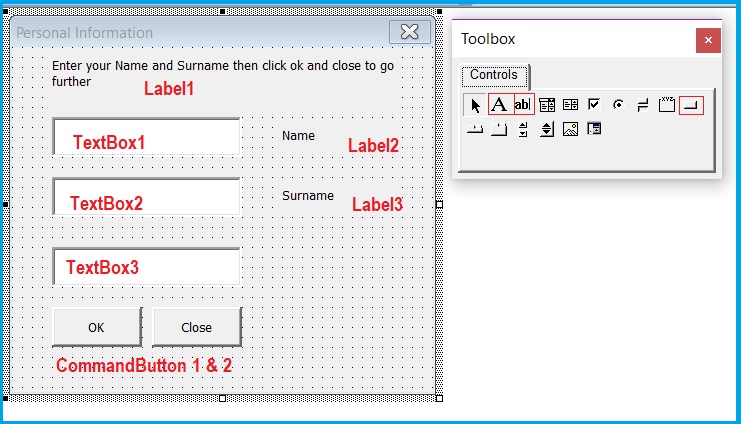
4.Click twice on CommandButton (1 or 2, doesn’t matter) or choose “View Code” for PersonalData Form in Object Browser in order to write this simple sentences in VBA:
Private Sub CommandButton1_Click()
TextBox3.Value = Date
End Sub
Private Sub CommandButton2_Click()
PersonalData.Hide
End Sub
5.Click Save with the .xlsm
6.Now Reopen this workbook and check the result.
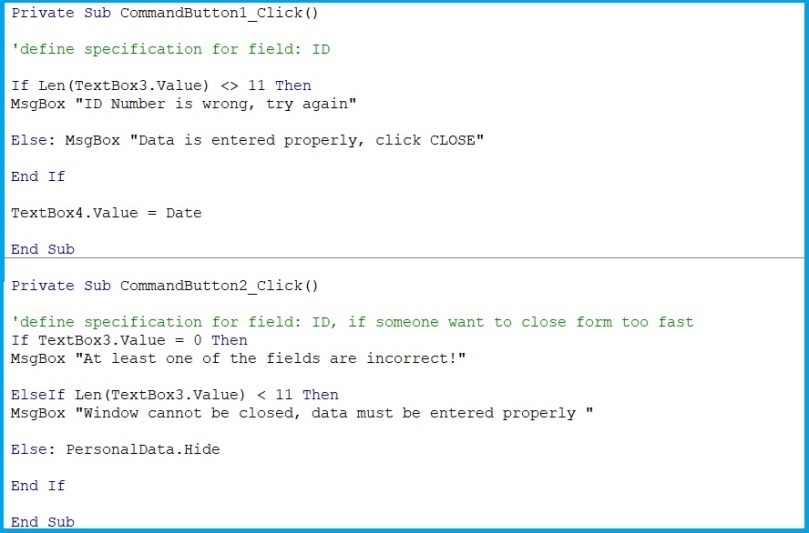
We can modify this code and create some specificiations. For this example I decided to add another textbox, where we can putour ID number, which should includes 11 figures
 Heart4DataScience