Let’s create quickly 2-3 reports with .txt extansion

and save it as:
Report_20181210
Report_20181211
Report_20181212
The main goal is to create a simple macro, which let final user to choose the path and importing the report into the selected sheet.
At first we will record the steps, that we are doing while we import report into excel.
cLet’s got to the top tabs, select Developer and then click on: Record Macro.
Now, let’s go to data – import txt file and follow the steps suggested by Excel.
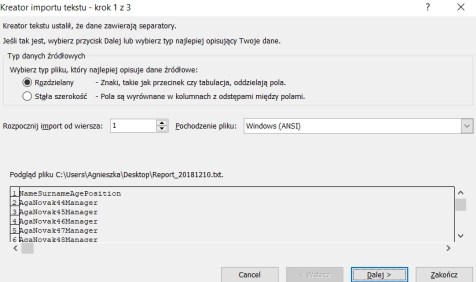
After we need to switch off the recording.
Now take a look at what has been saved by Excel in VBA Editor. On the list of Project Exloplorer, there will be a new module with a code like this one :
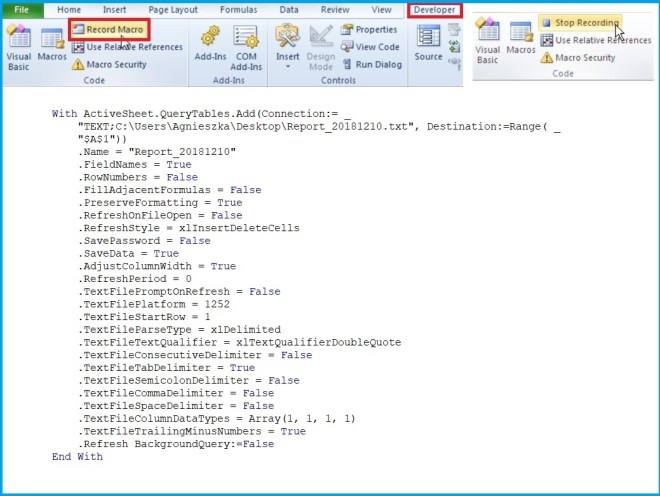
Looks nice but need to by a little modified.
Lets write a following Procedure:
Sub ImportReport()
Dim Answer As VbMsgBoxResult
Dim TxtPath As Office.FileDialog
Dim TxtFile As String
Set TxtPath = Application.FileDialog(msoFileDialogFilePicker)
With TxtPath
.AllowMultiSelect = False
.Title = “Please choose a folder to insert a Report_YYYYMMDD file:”
.Filters.Clear
.Filters.Add “All”, “*.*”
If .Show = True Then
TxtFile = Dir(.SelectedItems(1))
Sheets.Add.Name = TxtFile
End If
End With
Answer = MsgBox(TxtFile & “has been chosen, do you want to import this File?”, vbYesNo, “Importing”)
In First two lines of recorded macro we can seee path and filename, let’s put our variables instead and copy our recorded macro inside, for the Condition:
IF vbYes then, just like this:
If Answer = vbYes Then
With ActiveSheet.QueryTables.Add(Connection:= _
“TEXT;” & TxtPath.SelectedItems(1), Destination:=Range( _
“$A$1”))
.Name = TxtFile
.FieldNames = True
.RowNumbers = False
.FillAdjacentFormulas = False
.PreserveFormatting = True
.RefreshOnFileOpen = False
.RefreshStyle = xlInsertDeleteCells
.SavePassword = False
.SaveData = True
.AdjustColumnWidth = True
.RefreshPeriod = 0
.TextFilePromptOnRefresh = False
.TextFilePlatform = 1252
.TextFileStartRow = 1
.TextFileParseType = xlDelimited
.TextFileTextQualifier = xlTextQualifierDoubleQuote
.TextFileConsecutiveDelimiter = False
.TextFileTabDelimiter = True
.TextFileSemicolonDelimiter = False
.TextFileCommaDelimiter = False
.TextFileSpaceDelimiter = False
.TextFileColumnDataTypes = Array(1, 1, 1, 1)
.TextFileTrailingMinusNumbers = True
.Refresh BackgroundQuery:=False
End With
ElseIf Answer = vbNo Then
MsgBox “Choose file again”
End If
End Sub
At the end let’s clik on Debug –> Complie VBA Project, if everything’s fine go to RunSub (F5)
 Heart4DataScience