Before You start to build an intearcitve form, check if you have the required library properly installed on your device. Search for Enable or disable ActiveX settings in Office files at Microsoft Support website.
List of Active X Controls to insert into Active Worksheet we will find in Developer Tab
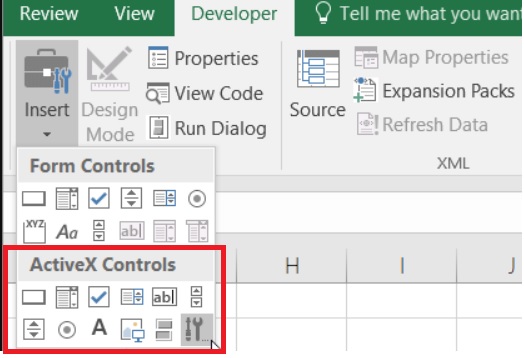
List of controls:
-Label
-Command Button (CommandButton)
-TextBox
-ComboBox
-ListBox
-CheckBox
-Option button (OptionButton / RadioButton)
-ScrollBar
-Spin Button (SpinButton)
-Image
-Application Page Tabs (MultiPage)
-Tab tabs (TabStrip)
I made a form for user to send a list of applicants for training in the selected programming area.
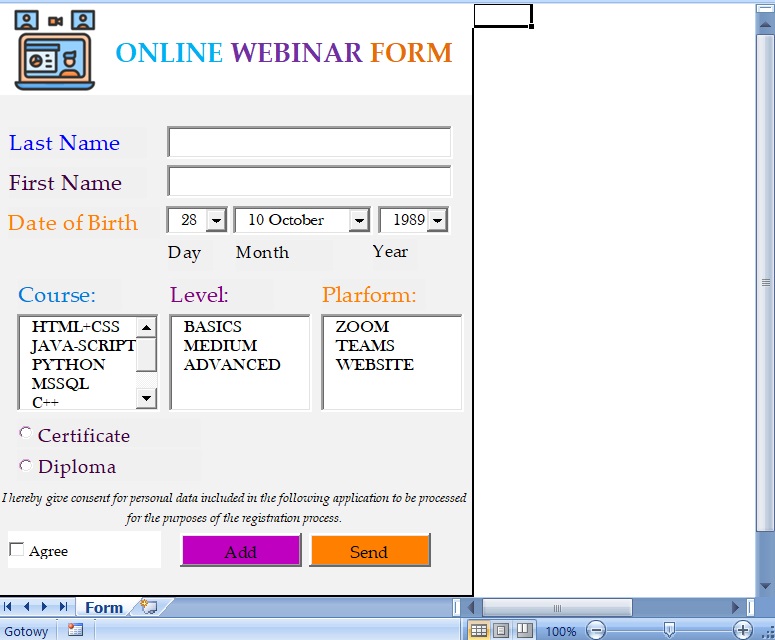
Fields: Name and Last Name are TextBoxes

Fields are ready to be filled, no code needed for these controls so far.
Next data to insert is a student’s birthdate. We could add another text box with an information, which format is expected to fill the information. But if we want to minimalize any wrong data inputs, we can choose the ComboBox and create a drop-down list:
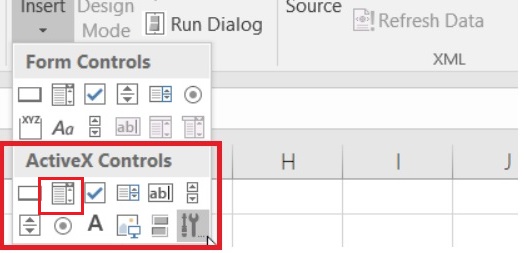
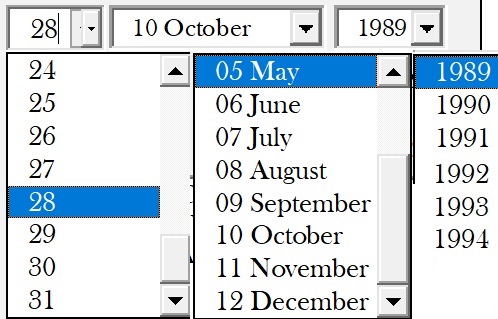
There is no need to write a code with numbers from 1 to 31 and so many values for field Year. Let’s use some loops for that. I named each of combi box to make it easier for writing a code.: DayCombi, MonthCombi, YearCombi.
Code for Day- and YearCombi:
With Sheets(1).DayCombi
    For intDayCombi = 1 To 31
    .AddItem intDayCombi
    Next
End With

With Sheets(1).YearCombi
    For intYearCombi = 1955 To 2004
    .AddItem intYearCombi
    Next
End With
As You can see above I definied quite different the field Month – with number and name of the Month. In next post You will see, how I declered it inside the code.
With Sheets(1).MonthCombi
    .AddItem "01 January"
    .AddItem "02 February"
    .AddItem "03 March"
    .AddItem "04 April"
    .AddItem "05 May"
    .AddItem "06 June"
    .AddItem "07 July"
    .AddItem "08 August"
    .AddItem "09 September"
    .AddItem "10 October"
    .AddItem "11 November"
    .AddItem "12 December"
End With
After insert student’s personal data we have to choose, for which course will be signed up. We can use Listbox :
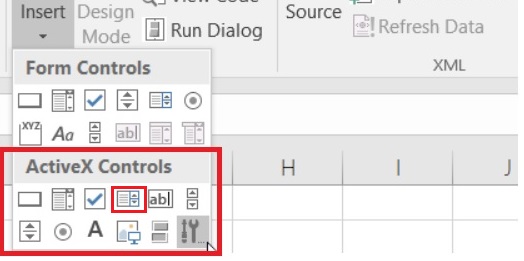
Named as follow: CourseList, LevelList, PlatformList. In a code I also gave a fix value for its size: Height and Width.
'Course

With Sheets(1).CourseList

.AddItem "HTML+CSS"
.AddItem "JAVA-SCRIPT"
.AddItem "PYTHON"
.AddItem "MSSQL"
.AddItem "C++"
.AddItem "JAVA"
.AddItem "PHP"

.Height = 59
.Width = 86

End With

'Level

With Sheets(1).LevelList

.AddItem "BASICS"
.AddItem "MEDIUM"
.AddItem "ADVANCED"

.Height = 59
.Width = 86
End With

'Connection Platform
With Sheets(1).PlatformList

.AddItem "ZOOM"
.AddItem "TEAMS"
.AddItem "WEBSITE"

.Height = 59
.Width = 86
End With
Full above code was written in ThisWorkbook
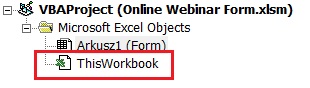
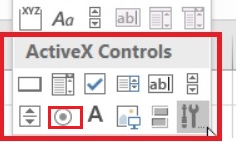
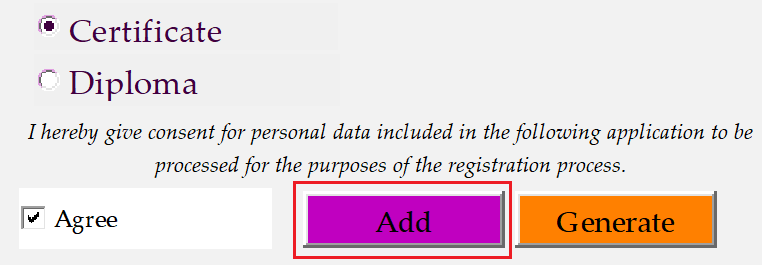
To select a proof, that course was finished by a student I decided to use an OptionButton.
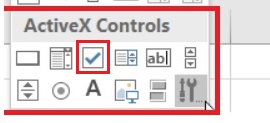
To agree for personal data processing I added CheckBox
OptionButtons:

If OptionButton1 = True Then
Cells(wRow, 4) = "Certifacte"
ElseIf OptionButton2 = True Then
Cells(wRow, 4) = "Diploma"
Else: Cells(wRow, 4) = "?"
End If
CheckBox:

If CheckBox1 = False Then
MsgBox "We really need Your accetpance for further registration process...:)", _
vbInformation
Exit Sub
End If
All this lines are written in the sub for Button: Add in the Form:
First line of my code referring to the ActiveSheet and variables will count for me the IDs of added lines and Rows in my current sheet:
Private Sub AddButton_Click()
Sheets(1).Select

Dim wID As Single
Dim wRow As Single

wID = Application.WorksheetFunction.Max(Range("B:B")) + 1
wRow = Application.WorksheetFunction.Count(Range("B:B")) + 1
To add some lines into Worksheet the data in our form need to be filled correctly. For blank fields there should be some warning for the user with no posibility to add record:
If NameField = "" Then
MsgBox "The first field for Your Name is empty", _
vbExclamation
Exit Sub
End If

If SurnameField = "" Then
MsgBox "The first field for Your Last Name is empty", _
vbExclamation
Exit Sub
End If
And how we would like to add lines into (in this project same) WorkSheet? It’s quite simple:
'Adding records
Cells(wRow, 2) = wID

Cells(wRow, 3) = NameField & ";" & SurnameField & ";" & _
YearCombi & "-" & Left(MonthCombi, 2) & "-" & DayCombi & ";" & _
CourseList & ";" & LevelList & ";" & PlatformList
Full code looks as follow :
Private Sub AddButton_Click()
Sheets(1).Select

Dim wID As Single
Dim wRow As Single

wID = Application.WorksheetFunction.Max(Range("B:B")) + 1
wRow = Application.WorksheetFunction.Count(Range("B:B")) + 1

'MsgBox wID
'MsgBox wRow

If NameField = "" Then
MsgBox "The first field for Your Name is empty", _
vbExclamation
Exit Sub
End If

If SurnameField = "" Then
MsgBox "The first field for Your Last Name is empty", _
vbExclamation
Exit Sub
End If

If CheckBox1 = False Then
MsgBox "We really need Your accetpance for further registration process...:)", _
vbInformation
Exit Sub
End If


'Adding records
Cells(wRow, 2) = wID

Cells(wRow, 3) = NameField & ";" & SurnameField & ";" & _
YearCombi & "-" & Left(MonthCombi, 2) & "-" & DayCombi & ";" & _
CourseList & ";" & LevelList & ";" & PlatformList

If OptionButton1 = True Then
Cells(wRow, 4) = "Certifacte"
ElseIf OptionButton2 = True Then
Cells(wRow, 4) = "Diploma"
Else: Cells(wRow, 4) = "?"
End If

End Sub
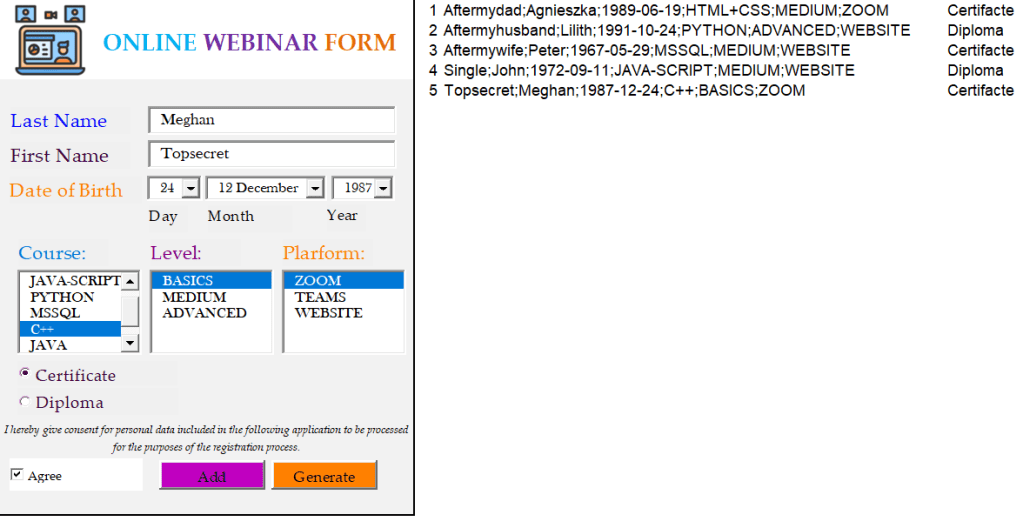
Let’s see how it works:
Generate Button

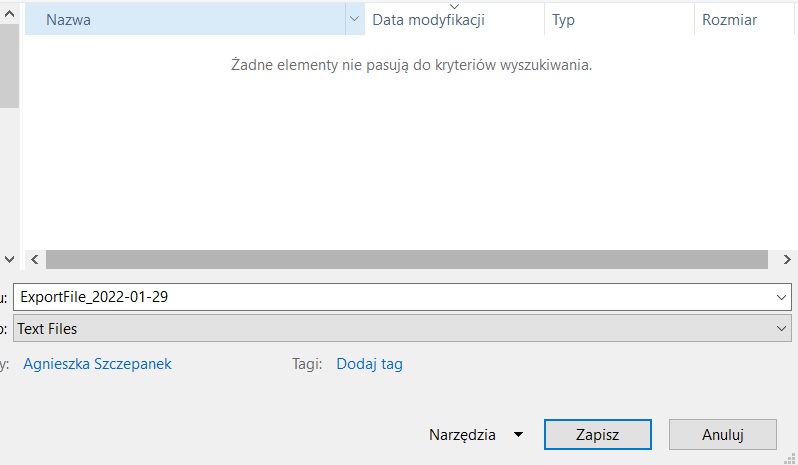
By clicking this option I would like to export my records cumulated in next columns as a text file with an unregular extension.
Private Sub GenerateButton_Click()
Sheets(1).Select
Dim rRow As Single
Dim ExpFileName As String

rRow = Application.WorksheetFunction.Max(Range("B:B"))
ExpFileName = "ExportFile" & Format(Date, "_yyyy-mm-dd")

FullFileName = Application.GetSaveAsFilename(ExpFileName & ".req", _
"Text Files (*.req),*.req", 1, "Saving Request")

If FullFileName <> False Then
    fnum = FreeFile()
    Open FullFileName For Output As fnum

    For Row = 1 To rRow
    mystr = Cells(Row, 3)
        mystr = RTrim(mystr)
        Print #fnum, mystr
    Next Row
    Close #fnum
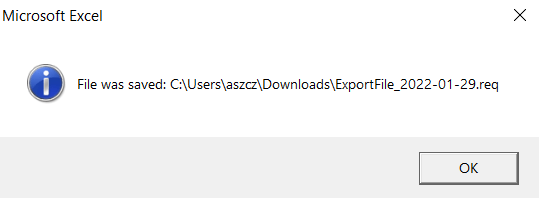
    MsgBox "File was saved: " & FullFileName, vbInformation
Else:
    MsgBox "Path was not selected, file was not saved, try again", _
    vbExclamation
End If

End Sub
Let’s see how it works:


Clearing data
To my code written in ThisWorkbook Object I addes some lines to clear data in the form for next use:
Private Sub Workbook_Open()
'Clearing fields while opening file
Sheets(1).NameField.Value = ""
Sheets(1).SurnameField.Value = ""
Sheets(1).CheckBox1 = False

Sheets(1).OptionButton1 = False
Sheets(1).OptionButton2 = False


Sheets(1).Select
Columns("B:D").Select
Selection.ClearContents
Range("B1").Select
Ok. Now our tool is ready for use. 🙂
 Heart4DataScience