DoCMD basic moves on Access objects

DSC_5759.JPG

From few weeks we have in whole country mushroom fever. No one expected such a mass of funguses, especially spill of boletus. So, nowdays I spend lot of time in the forest, for hours, with my family. And yes, I’ve seen lot of wilds, mostly deers. But it’s really hard to bend over your find and take a photo of beautiful proud bull with majestic antler at the same time 🙂 Anyway , if you are also type of threatened mushroom picker, be carefull, and whatch your steps,  cause mother-in-law is always follow ^^.

DSC_5617kk.jpg

With my latest post about importing Excel files into MS Access using VBA codes we already met simple examples of DoCommands. Time to get some other most useful methods for our project objects: tables, forms, querries and modules.

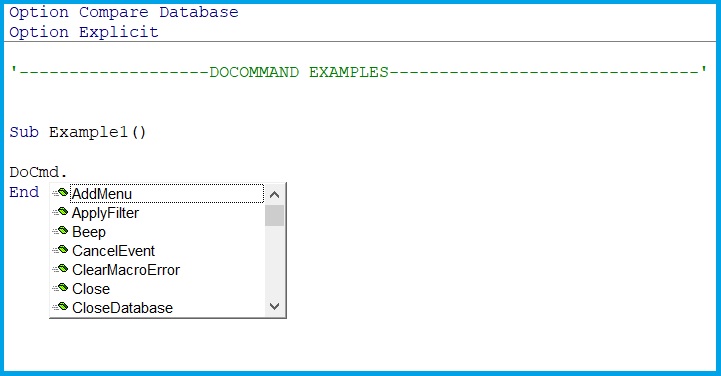
if only we will start writing DoCmd. built-in-library show us basic methods from the quicklist:
ex1

With following short procedures you can easily get knowdledge how to open, close and delete obejcts form code side.

Let’s make a copy first
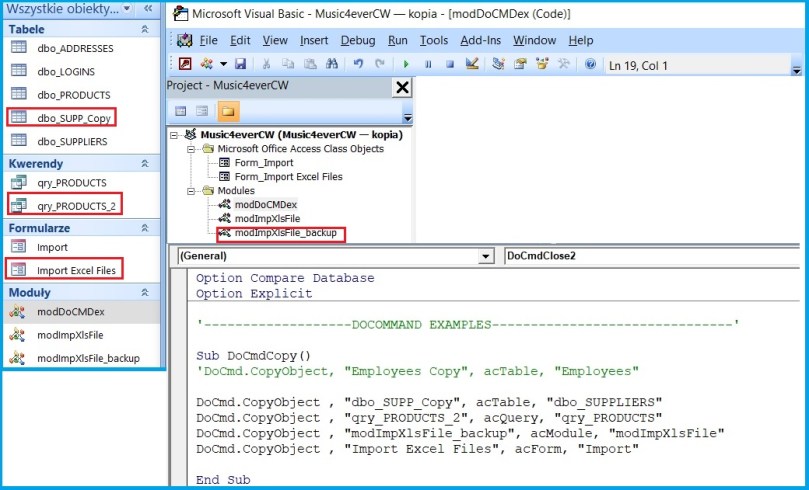
DoCmdCopy.jpg

and then open it in different ways

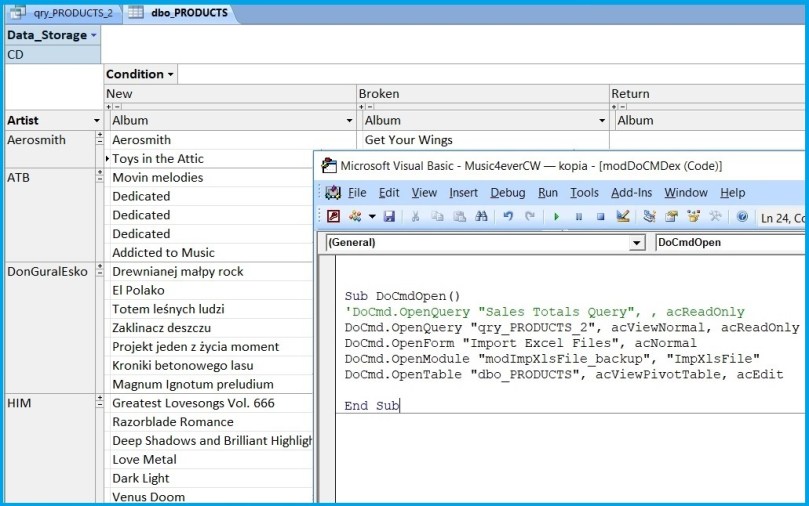
DoCmdOpenCopies.jpg

As you can see for table I choosed pivot view.

Time to close our copies, delete them and quit whole application after.
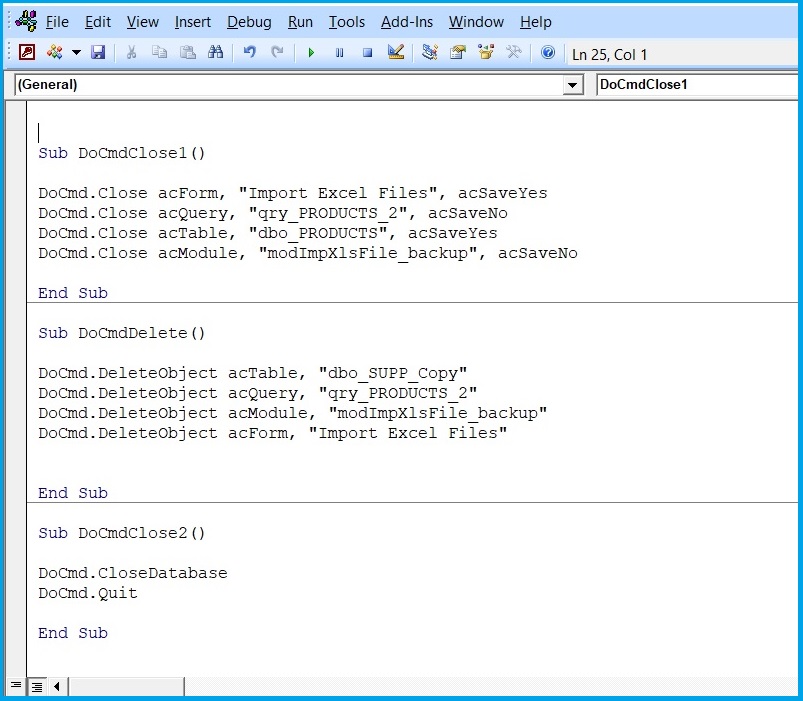
DoCmdcloseCopies.jpg

for more DoCMD methods visit docs.microsoft.com. Enjoy!
[VBA] Sending emails

Hello Everyone,

only two days left for long may weekend in Poland, so highest time to show you something new. And I am not talking only about this beautiful Moose mother with her child on the pic above, which I met few days ago, after 6 months from last meeting 🙂

Today I will focus on examples of sending email via VBA.

If you already have Outlook account, you can directly go to Excel or Acces file and insert new module for our code*.

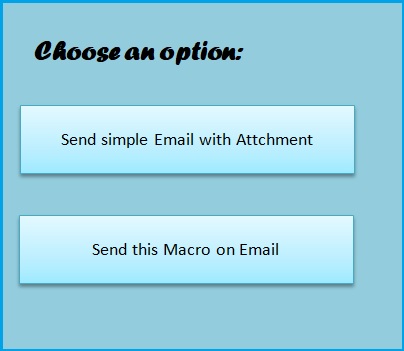
In Excel I created a simple form with only two bottons to select:

choose

Then went to Visual Basic – Insert – New Module and wrote this two simple procedures.

Sub VBAMailOutlook()
Dim OutProg As Object
Dim OutMail As Object

Set OutProg = CreateObject("Outlook.Application")
Set OutMail = OutProg.CreateItem(0)

With OutMail 
.To = "myEmailAccount@gmail.com"
.CC = "OtherEmailAccount@tlen.pl"
.BCC = ""
.Subject = "Test"
.ReadReceiptRequested = False
.OriginatorDeliveryReportRequested = False
.Body = "Hi!. This email was prepared only for testing phase" & _
vbCrLf & _
"Try by yourself" & vbCrLf & _
"regards. Agnes "
.Attachments.Add ("C:\Users\Agnieszka\Desktop\ksiazka.txt")
.Send
End With

Set OutProg = Nothing
Set OutMail = Nothing

End Sub
Sub SendingVBA()
Call ThisWorkbook.SendMail("myEmailAccount@gmail.com", _
"Current Macro", True)
End Sub

That I assigned two the bottons:

  1. 1st botton “Send simple Email with Attchment” – VBAMailOutlook
  2. 2nd botton “Send this Macro on Email” – SendingVBA

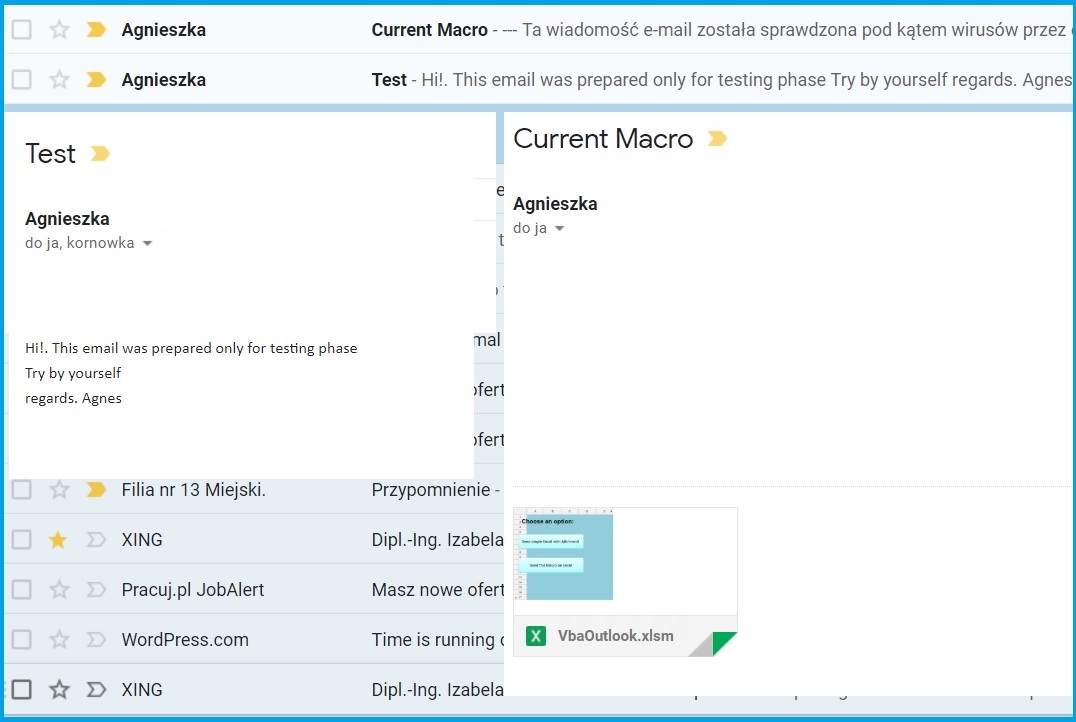
a result on my email:

email.jpg

*If you never done it before, but still have Outlook in your MS Office Service Pack, open it and follow the step by adding your exisitng email account.All you need to do is write your Name Surname and current email acount (f.e. NameSurname@gmail.com and Outlook will aututomatically import all your emails and contacts from this account based on POP3 client. It should take only few mins.