
Say Hello to Python

As I mentioned partly in my last post, I am trying my skills working from a few months in new environment totally different then used to…

Python differs significantly from the Visual Basic or C++ language, although it also provides many opportunities to process input data and generate results in line with our expectations. Python’s strong value is its extensive number of libraries, with which we can implement solutions in the field of statistics, data analysis and artificial intelligence.

Today I will present first examples of code for beginners. As usual you have a choice with which intepreter you would like to work with, even in notepad. I have installed Python 3.6 and write my programs in PyCharm.

If you decided to work in PyCharm, first open might need a few minutes more for self-configure environment and its components. Before dev. editor installation check if you alredy have Python on you application list:

If so, go to PyCharm (IDE) and select New Project

In our Project path we need to insert python file

First of all, in opossite to Visual Basic, there’s no need to declare data type for our variables, however we can change it and modify whenever we need to. Let’s write few simple lines of code.

Name = "John"
Surname = "Smith"
Age = 35
Sex = "Man"

to check the result we will use a print declaration. Let’s write some simple math operations for our variables:

print(Name + " " + Surname, Age, Sex)

As you can see there’s two methodes: we might declare a variable to introduce mathematical operations or we might just use a print before the argument. Now I will add three lines to check type of my variables:

print(type(Name))
print(type(Age))

To see first results let’s click on the Run

We can click on Debug before Run, to check for errors
#indexing

A = Name + Surname
print (A)
print(A[0:2])
print(A[3:6])
print(A[:-6])
print(A[:6])
print(A[:-6])
print(A[2:-6])

OK, this is where we end the first lesson. Try by yourself.
Data Consolidation

Just read that Microsoft will support Visual Basic on .NET 5.0 but will no longer add new features or evolve the language.

Does it mean the end? Not really, but as much as I’ve already learned about MS business strategy it might be awarness and first signs to think about other environment of data processing. And I am working on something new :).

Still I want to share with you some VB knowledge, especially advances about VBA in Acces, so this one is probably the last post showing examples of Excel macro.

1.From import level with dedicated path

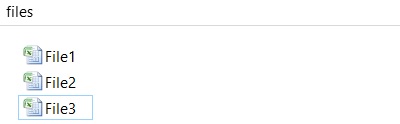
Let’s say we have some (Excel) files located on local path and we need to import all data to one sheet.

paths
Dim CurrSheet As Worksheet
Dim ReadFile As Workbook
Dim FilePath As String
Dim FileName As String
Dim rCounter As Long
Dim iCounter As Integer

Application.ScreenUpdating = False
Const Odstep = 1

Set CurrSheet = ThisWorkbook.Worksheets(1)
FilePath = "C:\Users\Agnieszka\Desktop\files\" 
FileName = Dir(FilePath & "*.xlsx")

With CurrSheet
Do While FileName <> ""
rCounter = .Cells(.Rows.Count, "A").End(xlUp).Row + 1

Set ReadFile = Workbooks.Open(FilePath & FileName)
ReadFile.Worksheets(1).Cells(1, 1).CurrentRegion.Copy .Cells(rCounter, "A")
ReadFile.Close
FileName = Dir
Loop
End With

Quite nice, but we need something else: remove special spaces and headers copies

iCounter = 3
Do While ActiveSheet.Cells(iCounter, 1) <> ""
If ActiveSheet.Cells(iCounter, 1) = "Name" Then Rows(iCounter).Delete
iCounter = iCounter + 1
Loop

And just one line at the begining to refersh data :

Cells.ClearContents

2. Inside the Workbook – between 2 sheets

Dim Sheet1, Sheet2, SheetAll As Worksheet
Dim Lst1, Lst2, WherePaste, FrstRow, Cols

Set Sheet1 = ThisWorkbook.Worksheets("Data1")
Set Sheet2 = ThisWorkbook.Worksheets("Data2")
Set SheetAll = ThisWorkbook.Worksheets("DataAll")
Lst1 = Sheet1.Cells(Rows.Count, "A").End(xlUp).Row
Lst2 = Sheet2.Cells(Rows.Count, "A").End(xlUp).Row
WherePaste = SheetAll.Cells(Rows.Count, "A").End(xlUp).Row + 1

If WherePaste = 1 Then WherePaste = 2
FrstRow = 2
Cols = 4
Application.ScreenUpdating = False

With Sheet1
.Range(.Cells(FrstRow, "A"), .Cells(Lst1, Cols)).Copy _
SheetAll.Cells(WherePaste, "A")
End With

WherePaste = SheetAll.Cells(Rows.Count, "A").End(xlUp).Row + 1

With Sheet2
.Range(.Cells(FrstRow, "A"), .Cells(Lst2, Cols)).Copy _
SheetAll.Cells(WherePaste, "A")
End With

Dim i As Integer
For i = 1 To 4
Sheets(3).Cells(1, i).Value = Sheets(1).Cells(1, i).Value
Next i