[VBA] Sending emails

Hello Everyone,

only two days left for long may weekend in Poland, so highest time to show you something new. And I am not talking only about this beautiful Moose mother with her child on the pic above, which I met few days ago, after 6 months from last meeting 🙂

Today I will focus on examples of sending email via VBA.

If you already have Outlook account, you can directly go to Excel or Acces file and insert new module for our code*.

In Excel I created a simple form with only two bottons to select:
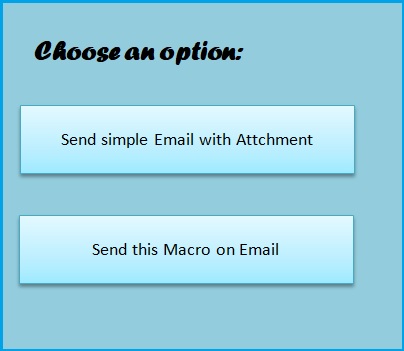
choose

Then went to Visual Basic – Insert – New Module and wrote this two simple procedures.

Sub VBAMailOutlook()
Dim OutProg As Object
Dim OutMail As Object

Set OutProg = CreateObject("Outlook.Application")
Set OutMail = OutProg.CreateItem(0)

With OutMail 
.To = "myEmailAccount@gmail.com"
.CC = "OtherEmailAccount@tlen.pl"
.BCC = ""
.Subject = "Test"
.ReadReceiptRequested = False
.OriginatorDeliveryReportRequested = False
.Body = "Hi!. This email was prepared only for testing phase" & _
vbCrLf & _
"Try by yourself" & vbCrLf & _
"regards. Agnes "
.Attachments.Add ("C:\Users\Agnieszka\Desktop\ksiazka.txt")
.Send
End With

Set OutProg = Nothing
Set OutMail = Nothing

End Sub
Sub SendingVBA()
Call ThisWorkbook.SendMail("myEmailAccount@gmail.com", _
"Current Macro", True)
End Sub

That I assigned two the bottons:

  1. 1st botton “Send simple Email with Attchment” – VBAMailOutlook
  2. 2nd botton “Send this Macro on Email” – SendingVBA

a result on my email:
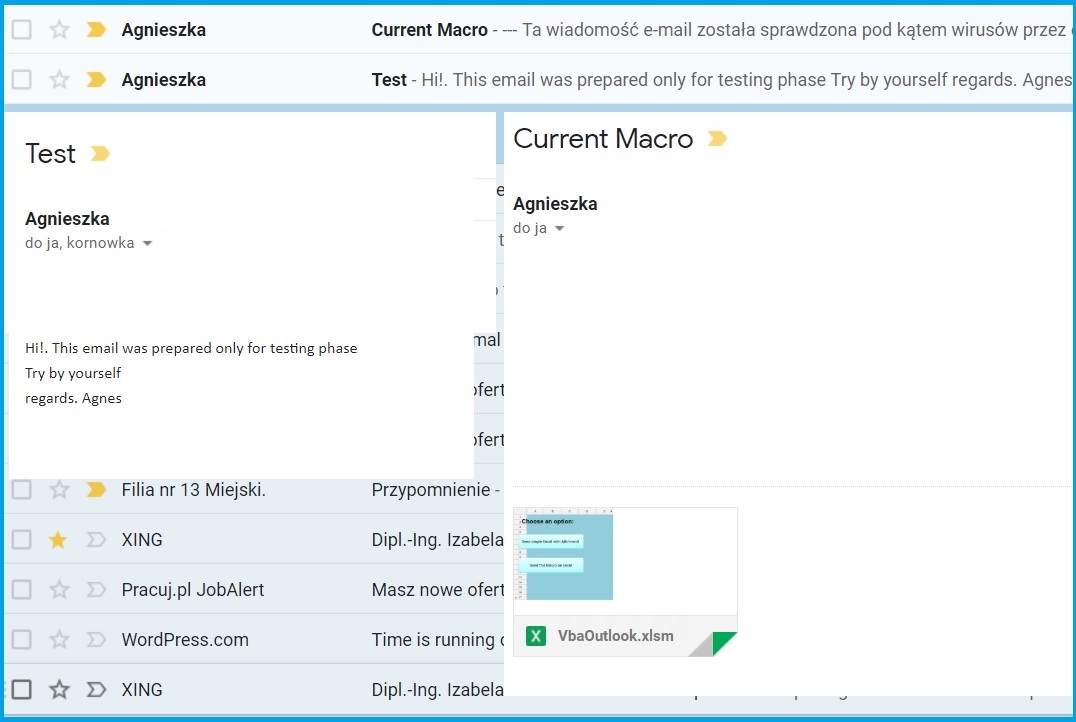
email.jpg

*If you never done it before, but still have Outlook in your MS Office Service Pack, open it and follow the step by adding your exisitng email account.All you need to do is write your Name Surname and current email acount (f.e. NameSurname@gmail.com and Outlook will aututomatically import all your emails and contacts from this account based on POP3 client. It should take only few mins.
[VBA Access] Interactive Form

As I promised this post will be an introduction into VBA in Access.

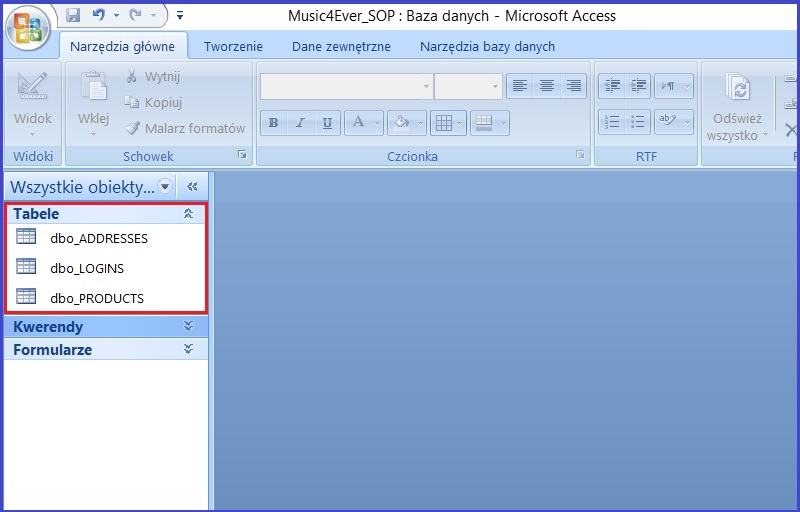
First step we need to take is to import tables from SQL. We have 2 options:

  • we can export database from SQL into Access
  • or import database directly in Ms Access by clicking on Data –> Importing [—>More] –> ODBC databases

Making step by step we will be asking about objects we would like to import, my sugesstion is to chose 3 of them, only tables:

  1. dbo_ADDRESSES,
  2. dbo_LOGINS,
  3. dbo_PRODUCTS
Music4Ever_SOP 1

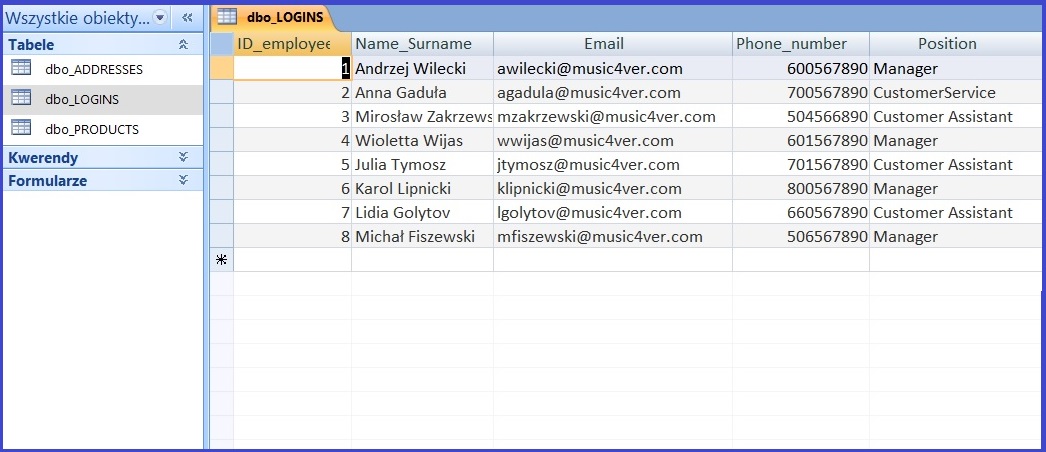
When database objects were succesfully imported, we need to check that we have any values inside tables we need

Music4Ever_SOP 2

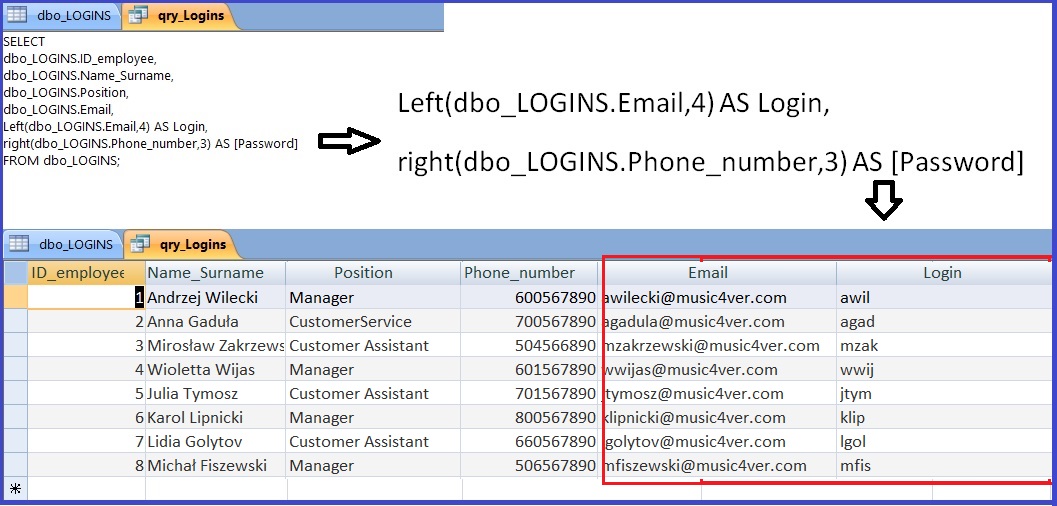
and create a simple query ( name: qry_Logins), that will be our base to create login window – Log In Form.

Music4Ever_SOP 3.jpg

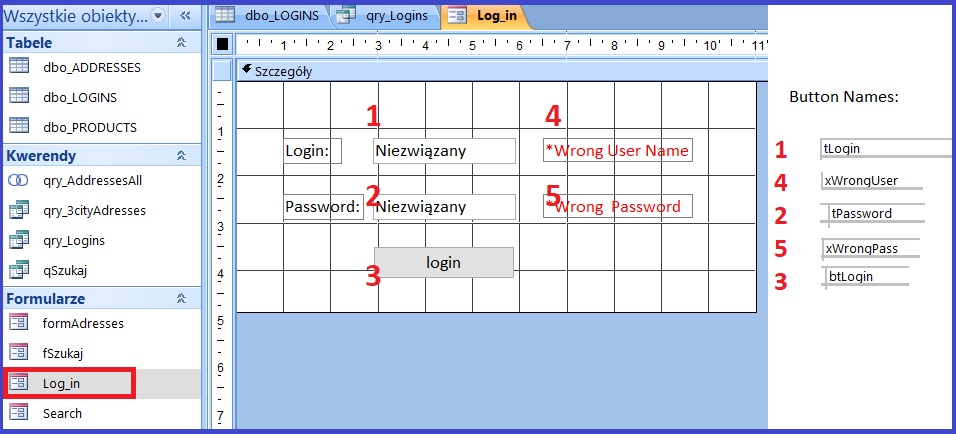
Import done, query done, time to create form. Go to section Forms –> Form Project and choose the folowing objects:

Music4Ever_SOP 4.jpg

It is important to name each of the object properly, cause this will be needed to make a VBA Code with references to them (name of the bottons we can change by open property sheey in section Creating –> Forms (tab: other after clicking on the botton).

If we we get final lay out for our form we can start to write pur first VBA Code in Access.

To write our code inside the Form we need to choose bottom named bltLogin (login) and event tab in property sheet section, next: event procedure —> macro bulider.

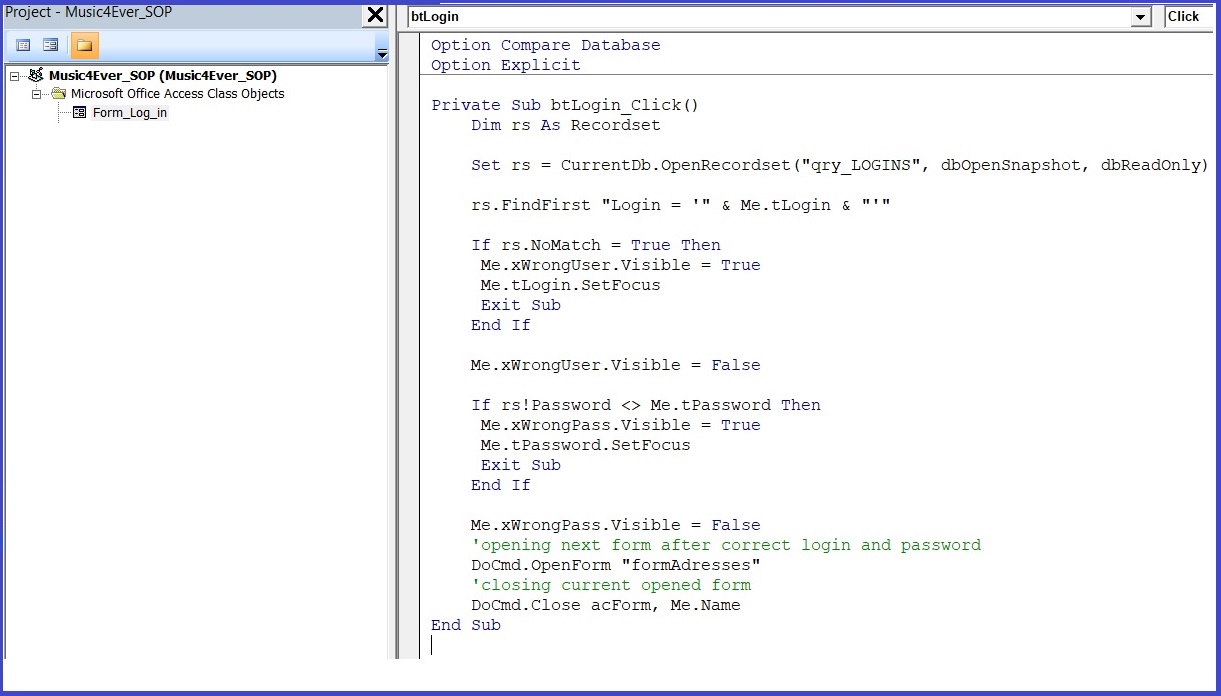
Write a code silimiar to this one:

Music4Ever_SOP 5.jpg


Private Sub btLogin_Click()
Dim rs As Recordset

Set rs = CurrentDb.OpenRecordset("qry_LOGINS", _
dbOpenSnapshot, dbReadOnly)

rs.FindFirst "Login = '" & Me.tLogin & "'"

If rs.NoMatch = True Then
Me.xWrongUser.Visible = True
Me.tLogin.SetFocus
Exit Sub
End If
Me.xWrongUser.Visible = False
If rs!Password <> Me.tPassword Then
Me.xWrongPass.Visible = True
Me.tPassword.SetFocus
Exit Sub
End If

Me.xWrongPass.Visible = False
'opening next form after correct login and password
DoCmd.OpenForm "formAdresses"
'closing current opened form
DoCmd.Close acForm, Me.Name
End Sub