As I promised this post will be an introduction into VBA in Access.
First step we need to take is to import tables from SQL. We have 2 options:
- we can export database from SQL into Access
- or import database directly in Ms Access by clicking on Data –> Importing [—>More] –> ODBC databases
Making step by step we will be asking about objects we would like to import, my sugesstion is to chose 3 of them, only tables:
- dbo_ADDRESSES,
- dbo_LOGINS,
- dbo_PRODUCTS
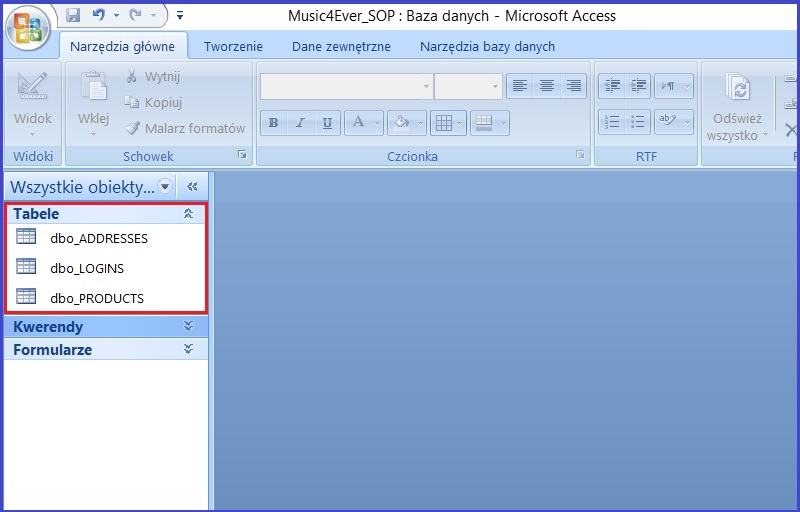
When database objects were succesfully imported, we need to check that we have any values inside tables we need
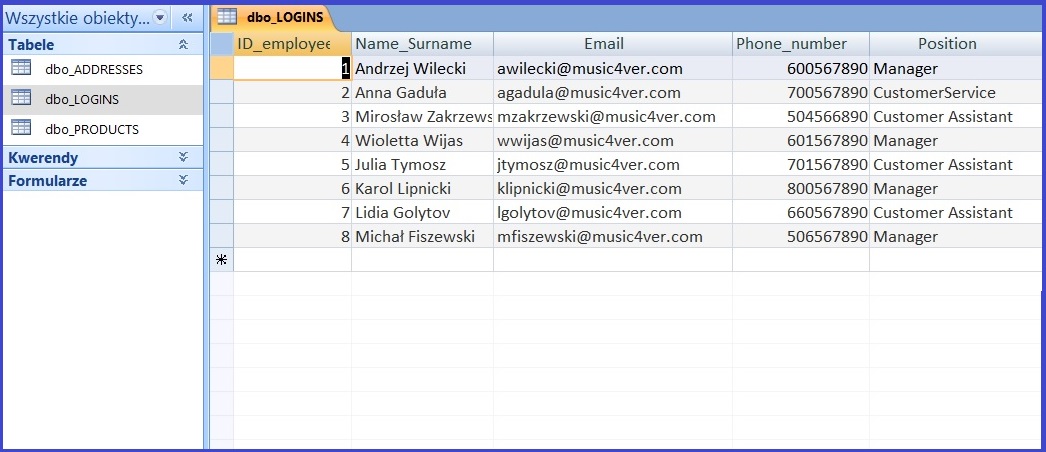
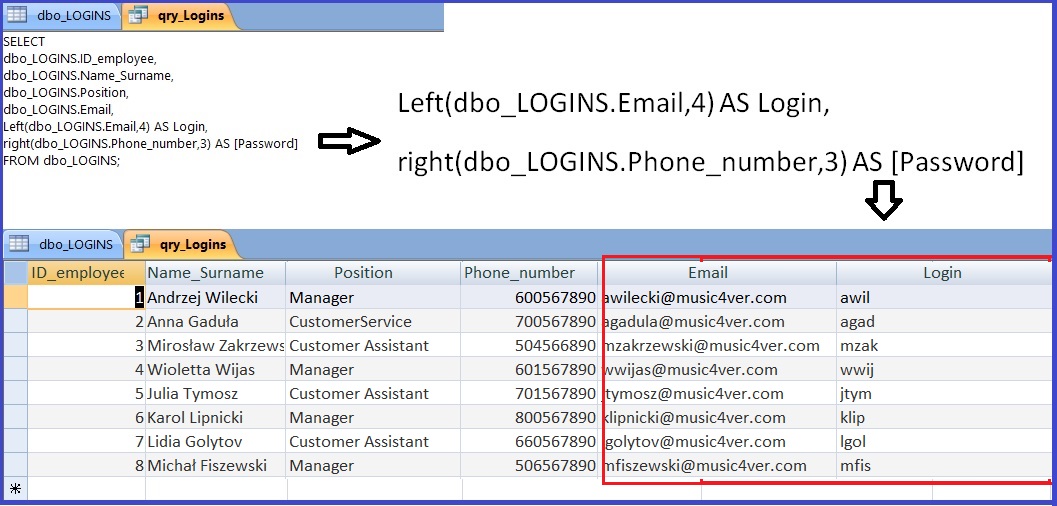
and create a simple query ( name: qry_Logins), that will be our base to create login window – Log In Form.
Import done, query done, time to create form. Go to section Forms –> Form Project and choose the folowing objects:
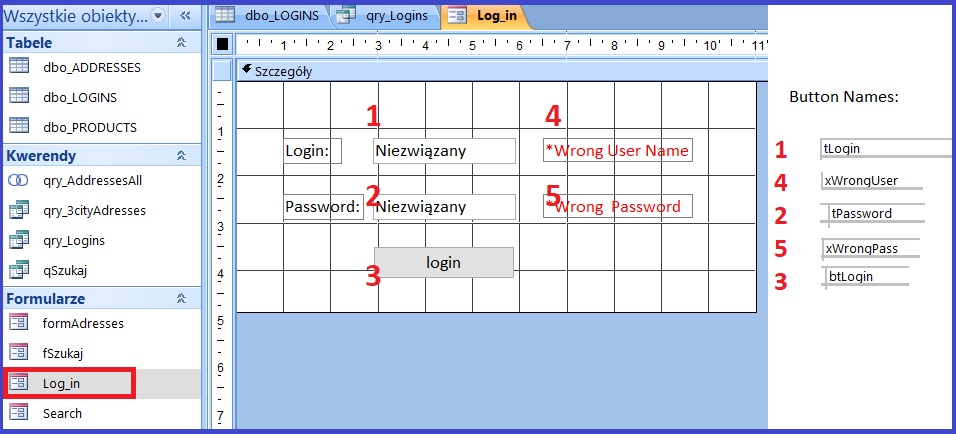
It is important to name each of the object properly, cause this will be needed to make a VBA Code with references to them (name of the bottons we can change by open property sheey in section Creating –> Forms (tab: other after clicking on the botton).
If we we get final lay out for our form we can start to write pur first VBA Code in Access.
To write our code inside the Form we need to choose bottom named bltLogin (login) and event tab in property sheet section, next: event procedure —> macro bulider.
Write a code silimiar to this one:
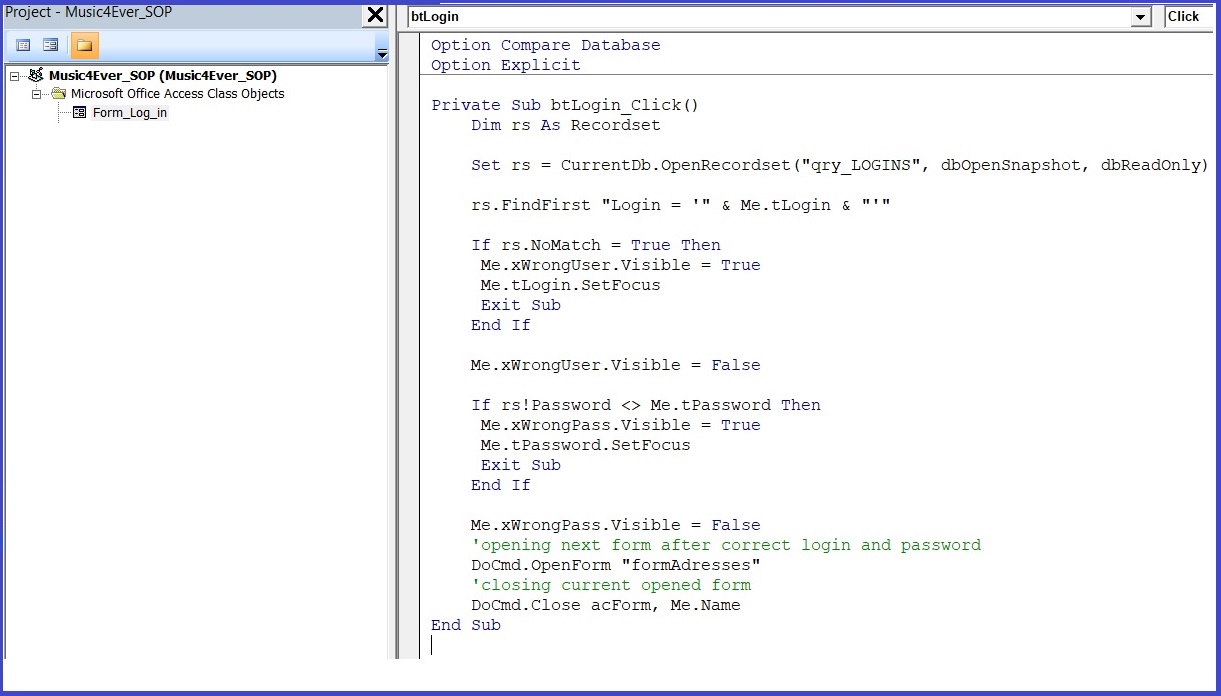
Private Sub btLogin_Click()
Dim rs As Recordset

Set rs = CurrentDb.OpenRecordset("qry_LOGINS", _
dbOpenSnapshot, dbReadOnly)

rs.FindFirst "Login = '" & Me.tLogin & "'"

If rs.NoMatch = True Then
Me.xWrongUser.Visible = True
Me.tLogin.SetFocus
Exit Sub
End If
Me.xWrongUser.Visible = False
If rs!Password <> Me.tPassword Then
Me.xWrongPass.Visible = True
Me.tPassword.SetFocus
Exit Sub
End If

Me.xWrongPass.Visible = False
'opening next form after correct login and password
DoCmd.OpenForm "formAdresses"
'closing current opened form
DoCmd.Close acForm, Me.Name
End Sub
 Heart4DataScience